

.png)


1. Building AI Apps Without Coding: What’s Changed
Building AI apps once required complex backend systems and machine learning expertise. Today, it's largely about connecting the right tools. By combining FlutterFlow with AI APIs, developers can build powerful AI-powered applications faster and without managing heavy infrastructure. This shift is making AI app development accessible to startups and small teams alike.
2. What You Actually Need Before You Start
Before opening FlutterFlow, get the basics clear. You only need three pieces.
First, the UI,this is where FlutterFlow handles everything visually. Second, the AI layer,usually an API that processes user input and returns “responses”. Third, the flow,how input moves from the app to the AI and back.
That’s why AI app development without coding works here. You’re not building intelligence from scratch,you’re plugging into it. Once this flow makes sense, the rest of the setup becomes straightforward.

3. Designing the First Screen in FlutterFlow
Start with a simple layout. Add a text input and a button,this becomes the core interaction. Keep it clean. One input, one action.
In most cases, you’re setting up the base of a FlutterFlow chatbot app. So think in terms of conversation, not forms. Where does the user type? Where does the response appear?
Don’t overdesign here. The goal is to create a structure that can later handle dynamic AI responses without breaking the flow.
4. Handling User Input the Right Way
Now connect that input field to a variable. Whatever the user types needs to be stored before you send it anywhere.
In FlutterFlow, this usually means binding the text field to a state variable or controller. Keep it simple,capture the value, and make sure it’s accessible when the button is clicked.
This step looks small, but it’s critical. If input isn’t handled cleanly, your AI request won’t work properly later.
5. Connecting FlutterFlow to an AI API
This is where the app actually becomes “AI-powered.”
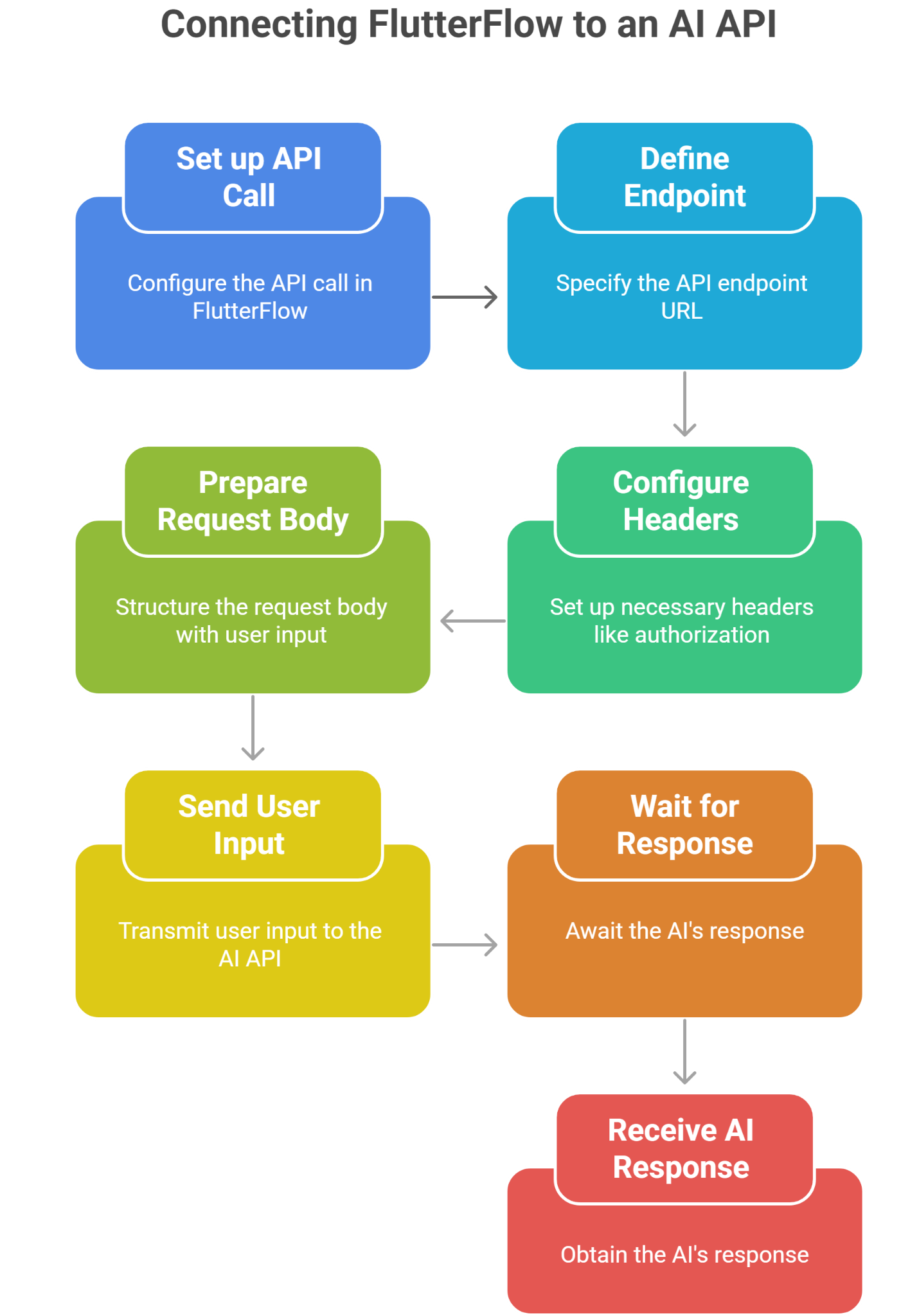
In FlutterFlow, you set up an API call by defining:
- The endpoint
- Headers (like authorization)
- Request body (where user input goes)
Once configured, your app can send user input to the AI and wait for a response. This is the core of how you build AI apps with FlutterFlow,you’re connecting your UI to an external intelligence layer.
Keep your setup clean and test the API separately if needed. Most issues here come from incorrect headers or request formats.
6. Sending Requests and Processing AI Responses
Now the loop kicks in. User types → request goes out → response comes back.
What trips people up isn’t the request,it’s the response. The API doesn’t return a clean sentence sitting on top. It comes wrapped in a JSON structure. Somewhere inside that, your actual answer is hiding.
In FlutterFlow, you have to point to the exact field that contains it. One wrong path, and your UI shows nothing,even though the API worked fine.
Once you map it correctly, things click. Input in, response out. Feels instant. Feels like AI.
7. Displaying AI Output in Your App UI
Once you’ve mapped the response, you need to show it. This part is straightforward,but easy to mess up if bindings aren’t set correctly.
Take the field you mapped and connect it to a text widget. That’s it. When the API returns data, the UI updates automatically.
If nothing appears, don’t assume the API failed. It’s usually a binding issue,wrong variable, wrong path, or not triggering a refresh.
When this works, the app finally feels alive. You type something, and the app responds back. No reloads. No delays. Just a clean loop.
8. Turning It Into a Chat Experience
At this point, the app works,but it still feels like a single-response tool.
To make it feel like a FlutterFlow chatbot app, don’t overwrite the response each time. Instead, keep a running list of messages. Every user input and AI reply gets added to that list.
Now the screen builds a conversation. You can scroll, see past messages, and follow the flow.
It’s a small shift, but it changes how the app feels. Less like a form. More like something you can actually talk to.
9. Why FlutterFlow Works as a No-Code AI Builder
- Handles UI, logic, and API connections in one place
- No need to manage servers or backend infrastructure
- Faster to prototype and iterate
- Easy to plug into external AI services
- Clean visual flow for building features
That’s what makes it a practical no-code AI app builder. You focus on how the app behaves, not how it’s built underneath.
10. What You Can Build From Here
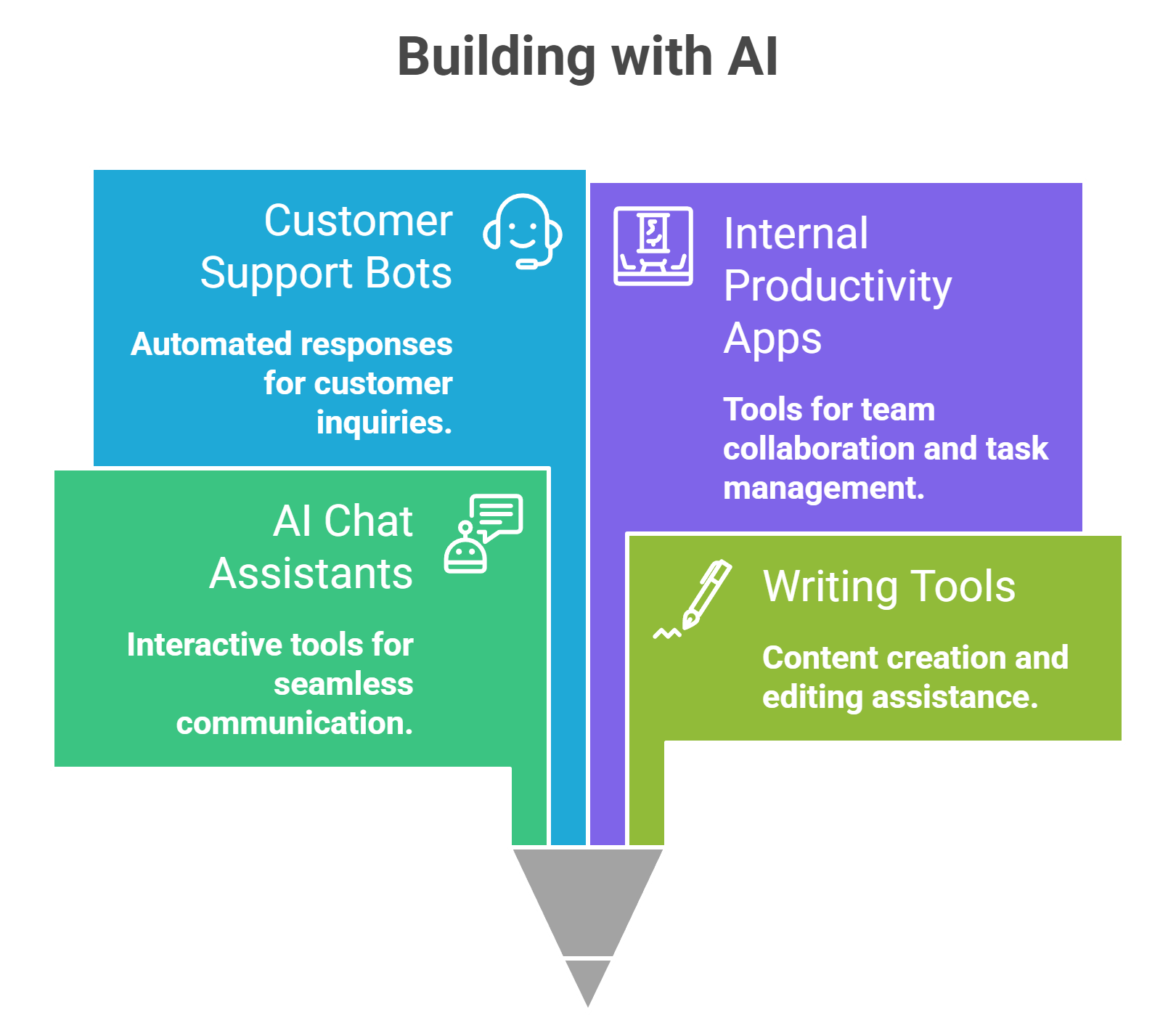
Once the flow is clear, you can build a lot more than just a basic chatbot.
- AI chat assistants
- Writing or content tools
- Customer support bots
- Internal productivity apps
This is where AI-powered mobile apps start to make sense. You’re not limited to one use case,you’re working with a pattern that can be reused across ideas.
The core remains the same: input, API, response. What changes is how you apply it.
11. Conclusion: AI Apps Are Now About Execution
Building AI apps isn’t the hard part anymore. Connecting the pieces is.
With FlutterFlow AI app development, you’re working with a simple loop,input, API, response. Once that’s clear, everything else is just iteration.
The advantage now isn’t technical depth. It’s how quickly you can turn an idea into something usable. That’s where most teams win,or don’t.
%20(1).jpg)

View more blogs
.png)
.png)
.png)
.png)
.png)


.png)
.png)
Ready to develop your own product? Get in touch today!
Get in Touch